
 New! Website, brand book and mascot for a school in New York

Platform · 2025
Leika: an events platform and a landing page
Leika is a service for events. Guests write in a Telegram chat, and their messages, photos, GIFs and reactions appear on a big screen. We made the landing page and the platform: login by code, settings, design themes and the broadcast screen.
Leika

The task
Organizers of weddings, parties and corporate events need a way to engage guests: so that they do not just sit at the tables but write, send photos and see themselves on the big screen. Asking guests to install an app or register is inconvenient. We chose Telegram: everyone already has it.
Two things were needed: a website that explains the service and leads to the plans, and a platform through which the organizer sets up the screen and starts the broadcast.
How it works
The organizer adds the Telegram bot to the event chat, opens a link (or enters a code on the platform) and starts the broadcast. After that everything guests write in the chat appears on the screen.
-
Three connection steps
From the chat to the screen
- A bot in the chatwe add the Telegram bot
- A link or a codewe connect the event
- Broadcastmessages go to the screen
Landing page
-
First screen
The first screen shows live photos from events and the slogan “Level up your event”. At the top is a menu with “For organizers”, “For companies”, “Prices” and a login button for clients. On every screen a yellow duckling sticker greets you.
- Live photos. A wedding, friends, a party: it is clear at once what the service is for.
- Client login. The button in the corner leads to the platform.
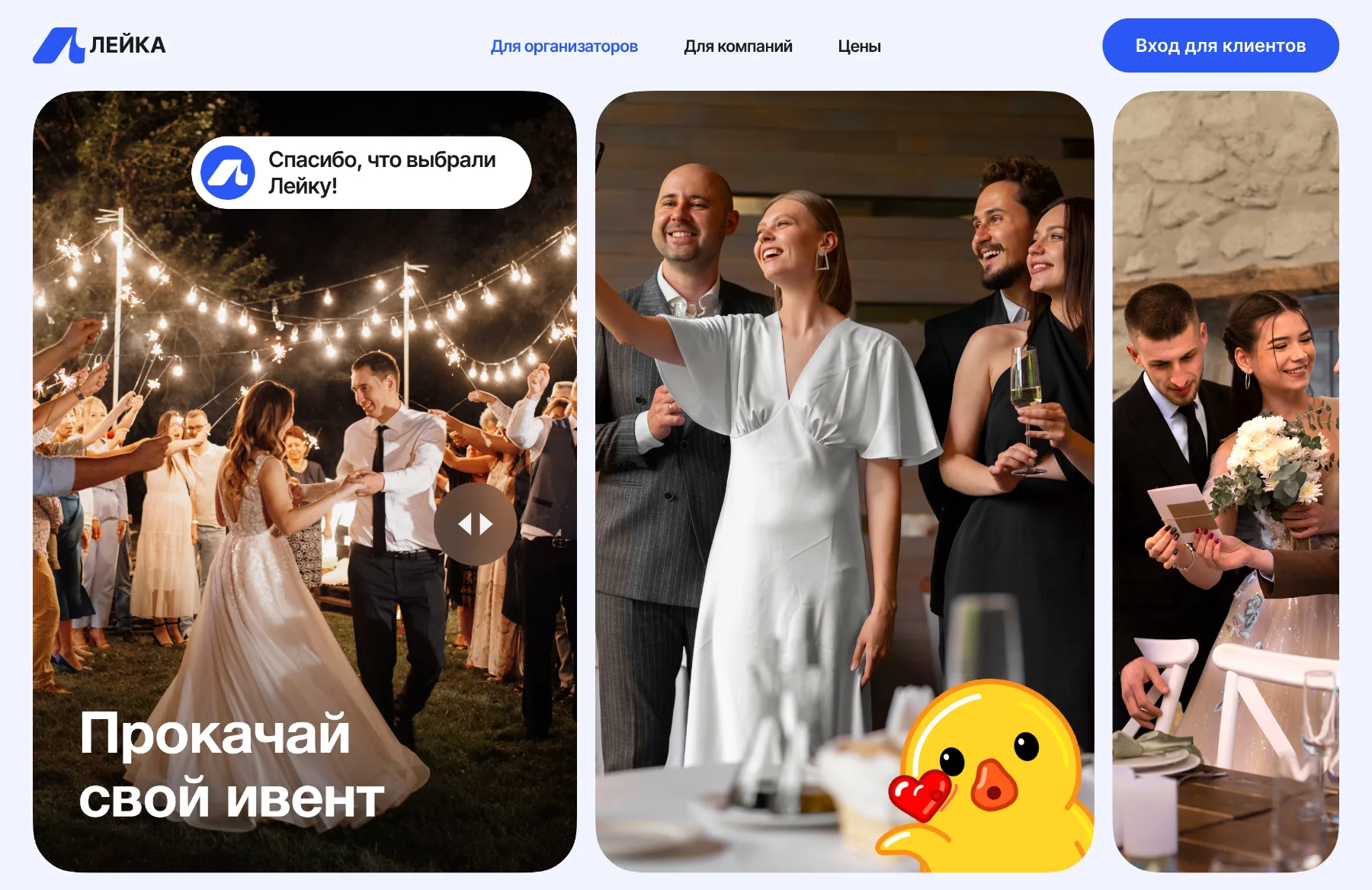
The first screen of the landing page -
Why Leika is a must-have
Next come four reasons in cards with big stickers. The stickers are the single hero of the landing page: ducklings in different looks.
- Unique interactives. Games, polls and contests.
- Easy to connect. Simpler than pouring yourself a coffee.
- Set it up your way. Personalize your fun.
- A flash mob in your pocket. Cool tricks to light up the crowd.
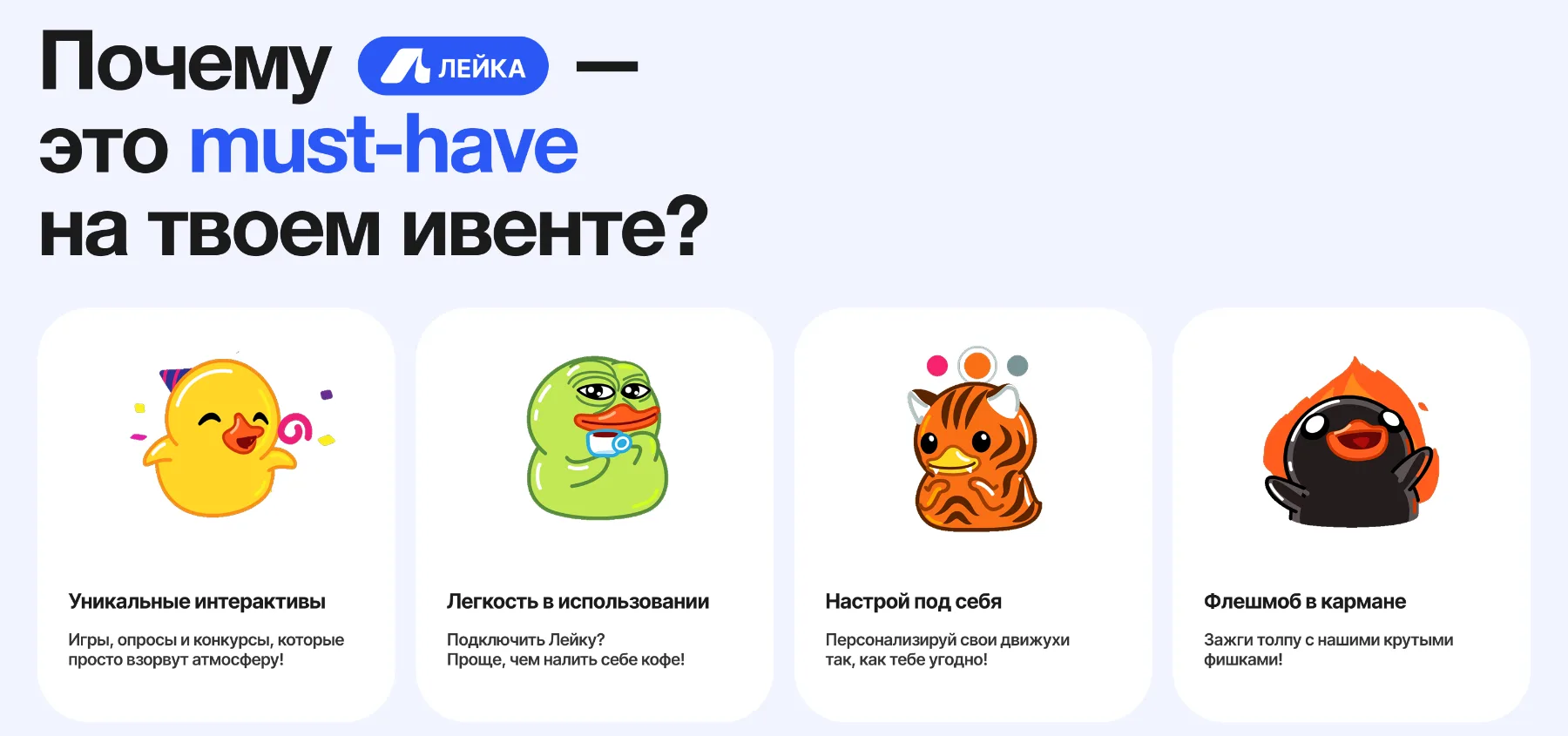
Four reasons -
Three connection steps
The connection is explained with three pictures: add the bot to the chat, open the link, start the broadcast. Each step has its own illustration, so there is no need to read an instruction.
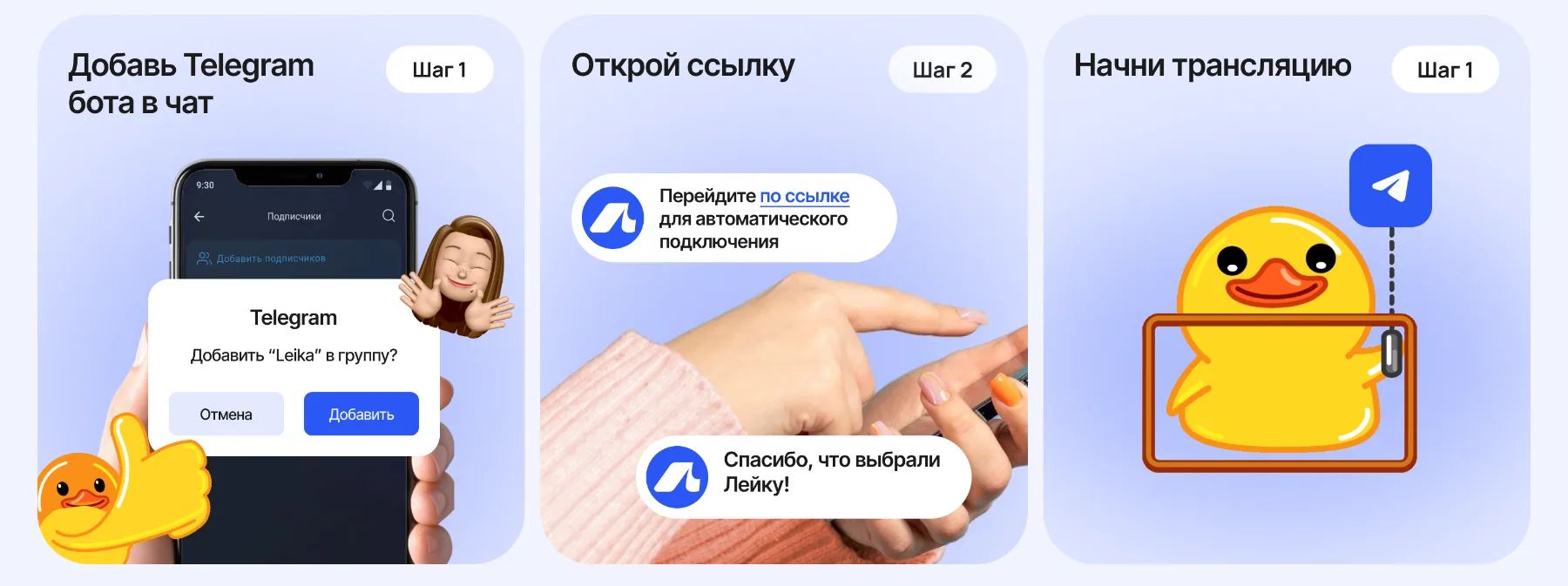
Three steps on the landing page -
For organizers
The first dark panel speaks to organizers: a photo of a party, a list of features and a “Choose a plan” button.
- Unique functions. For engaging guests.
- Your own design. To fit the theme of the event.
- No registration. Access through a popular messenger.
- A memory of the event. The whole chat history stays with the clients.
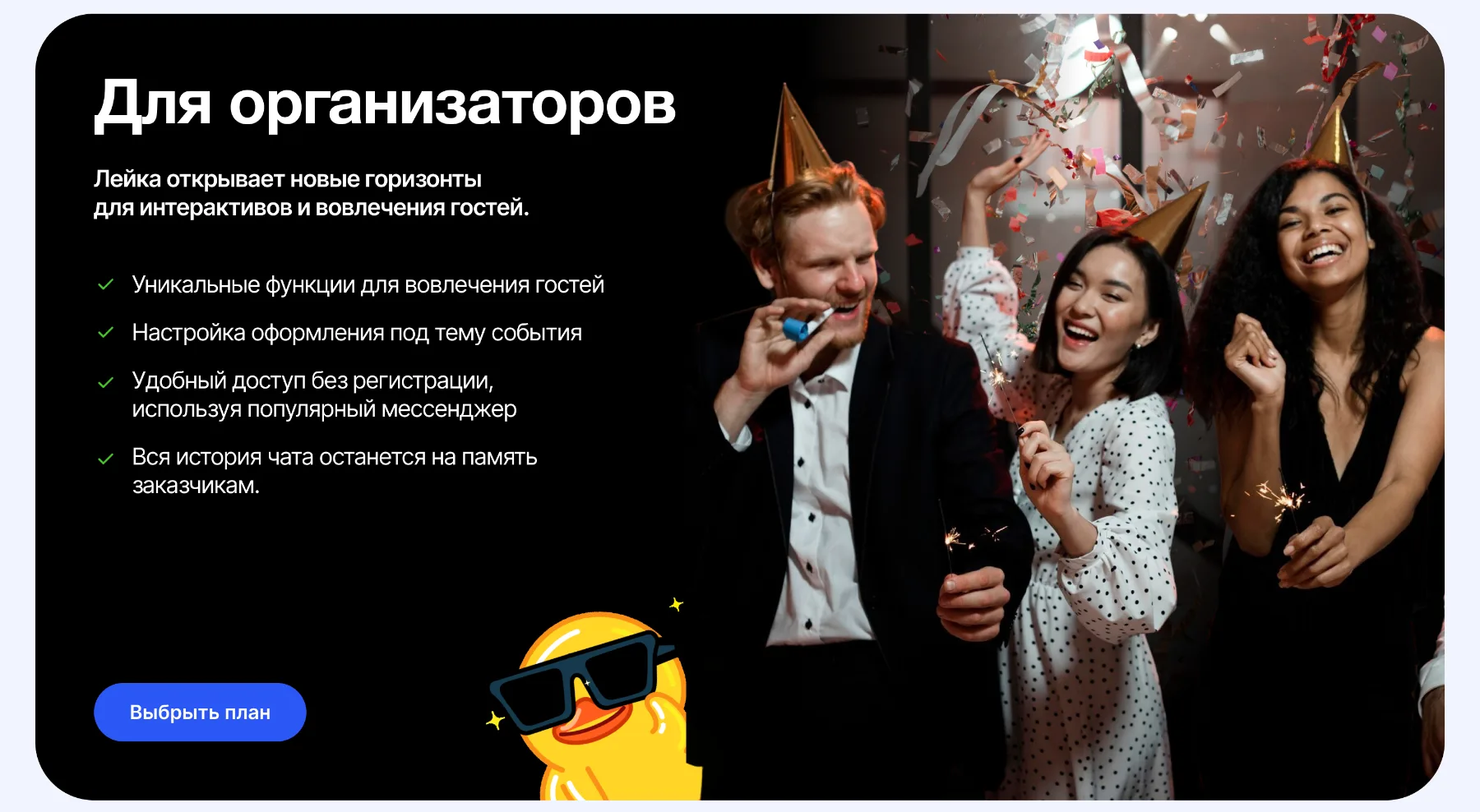
A block for organizers -
For companies
The second panel is for companies: informal communication, a photo collection from colleagues, gamification and a setup for the corporate style. In the bubbles on the photo are live examples of messages.
- An event inside a company. A tool for corporate parties and team holidays.
- Gamification. Game elements for engaging participants.
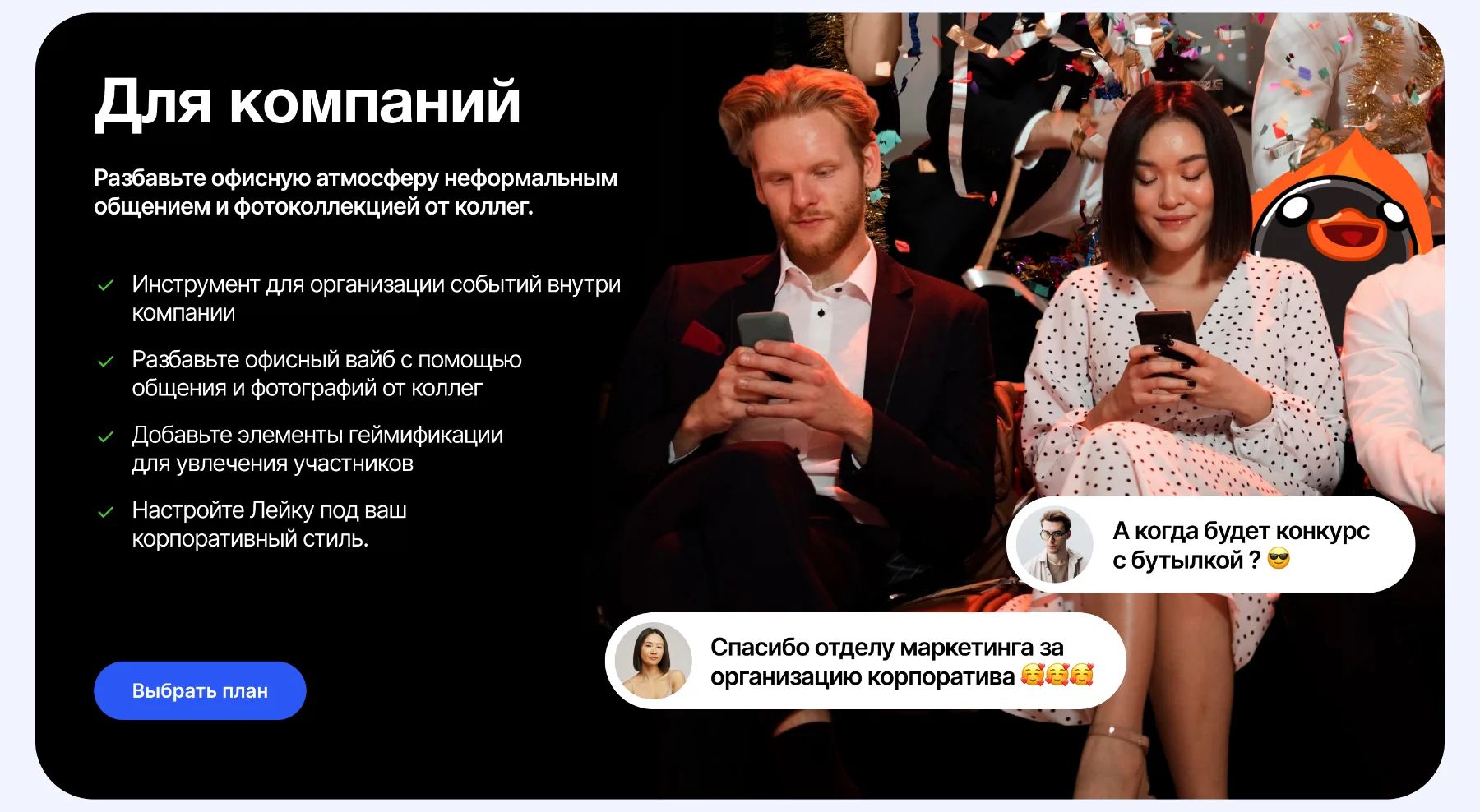
A block for companies -
The mobile version and the plans
The landing page is built for phones too: guests and organizers more often open links from a messenger, so the mobile version was designed separately. At the bottom are three plans: Standard, Advanced (Pro) and Corporate.
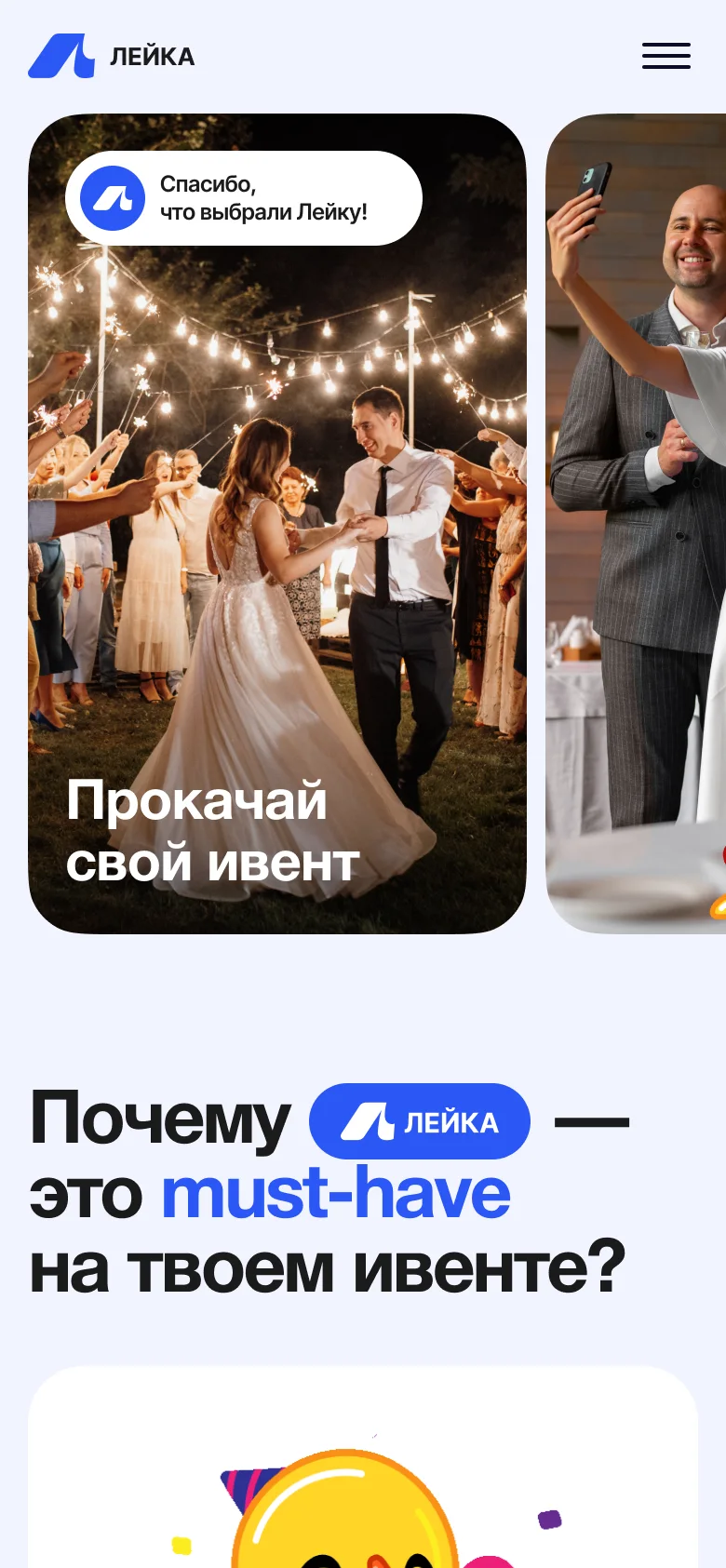
First screen 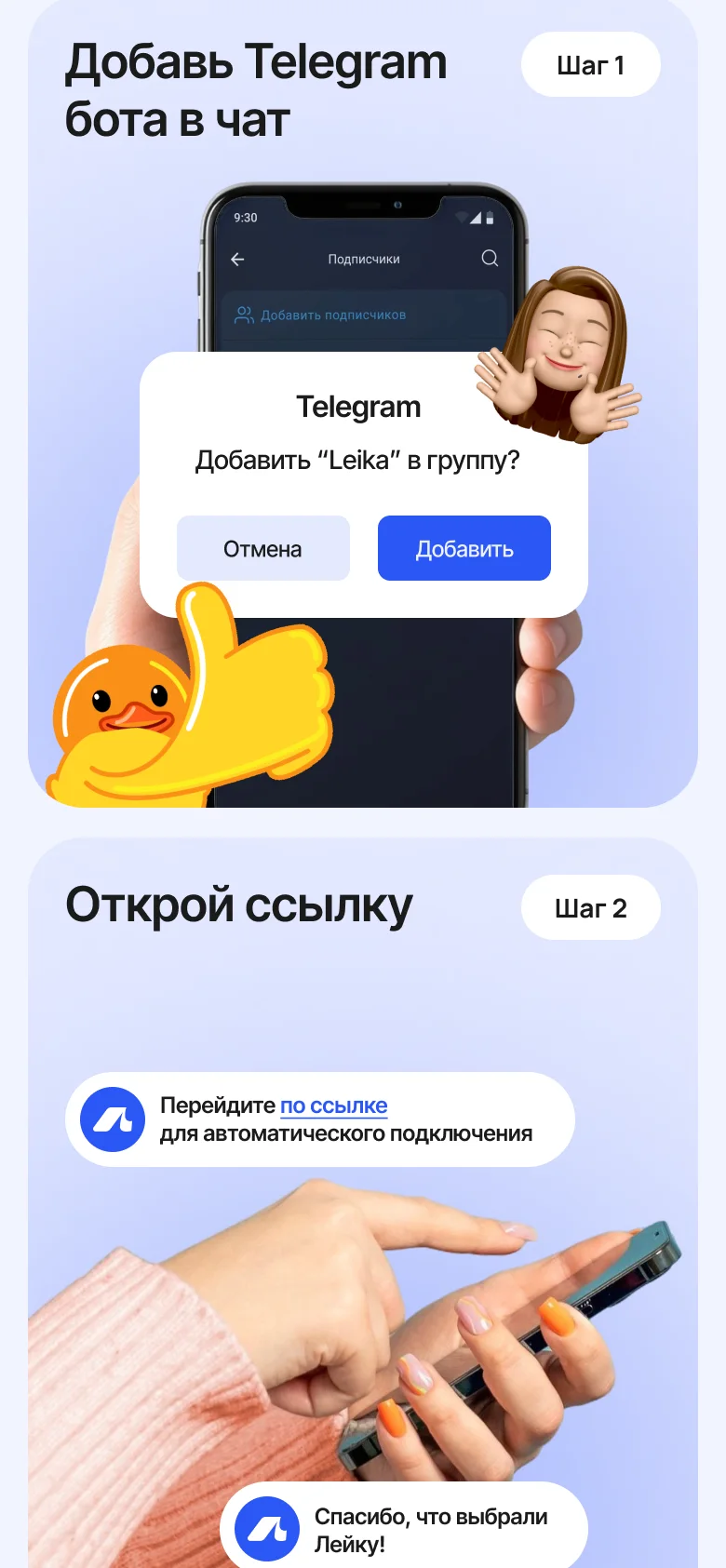
Steps 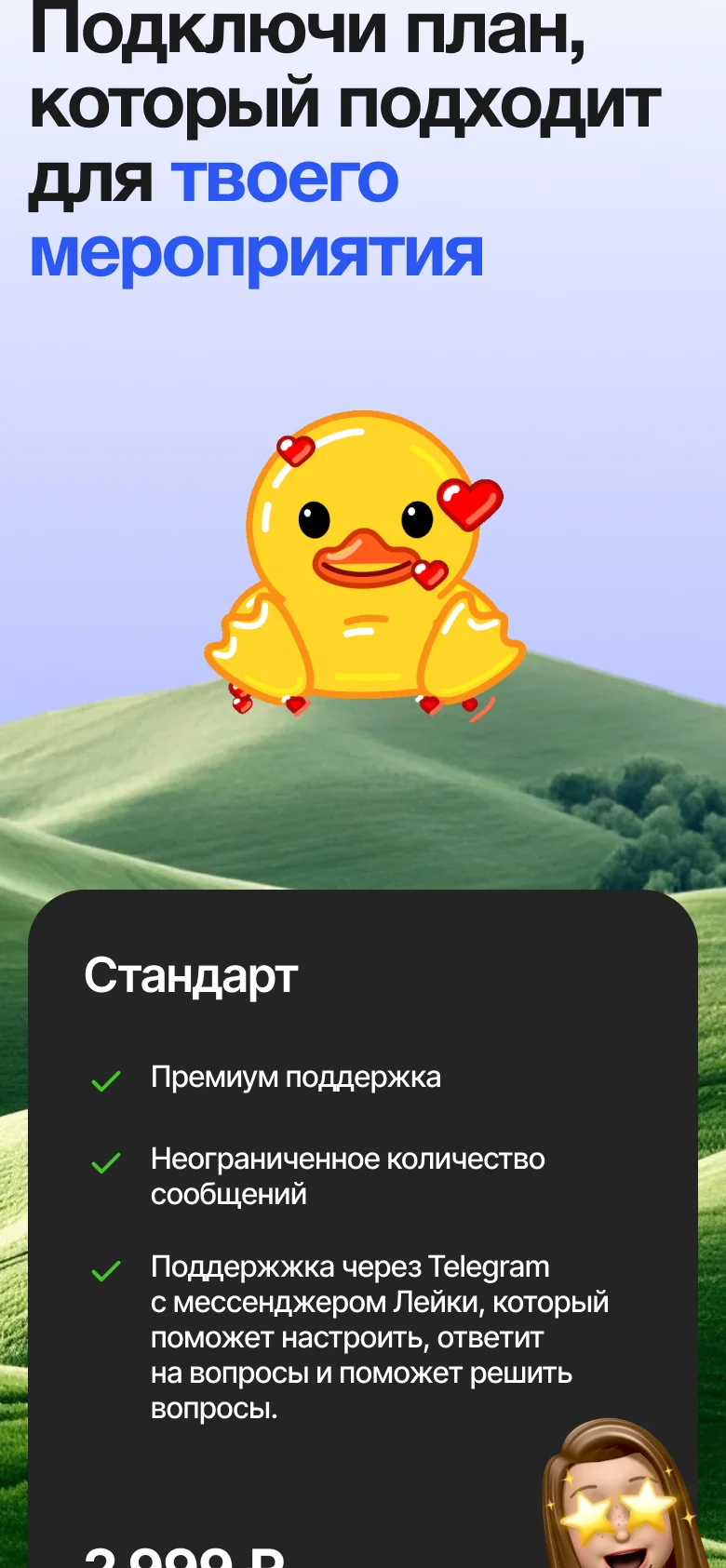
Plans
Platform
The platform is the organizer’s panel and the broadcast screen. In the panel everything is set up without a programmer: from the name of the event to the theme and the message template. The screen is shown to guests on a projector or a TV.
-
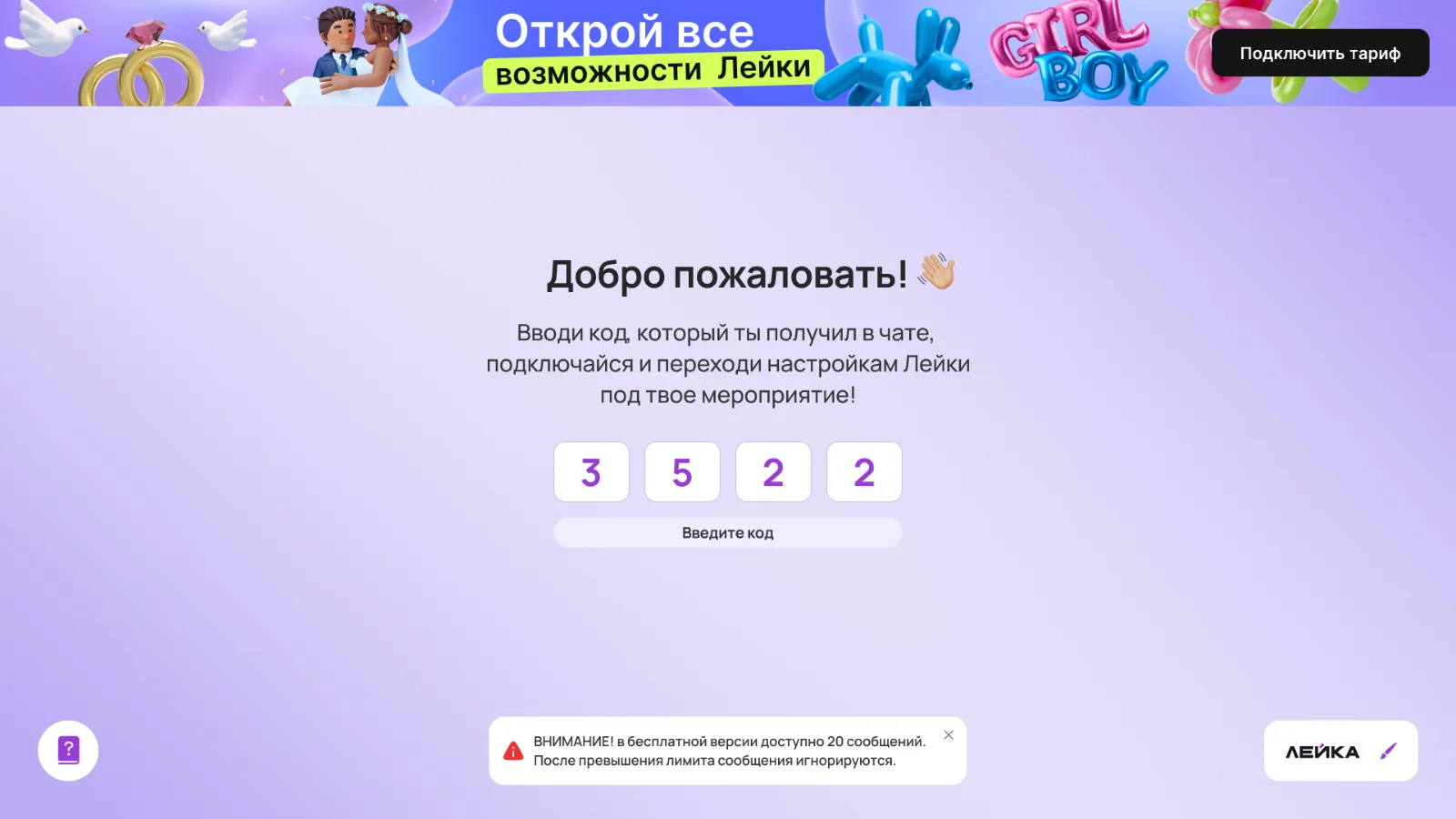
Login by code
The organizer gets to the platform with a code from the chat: four digits and a button. If the code is wrong, the platform says so at once with a red caption.
- No registration. Login only by the code from the chat.
- Clear errors. A hint appears under the field at once.
Login by code 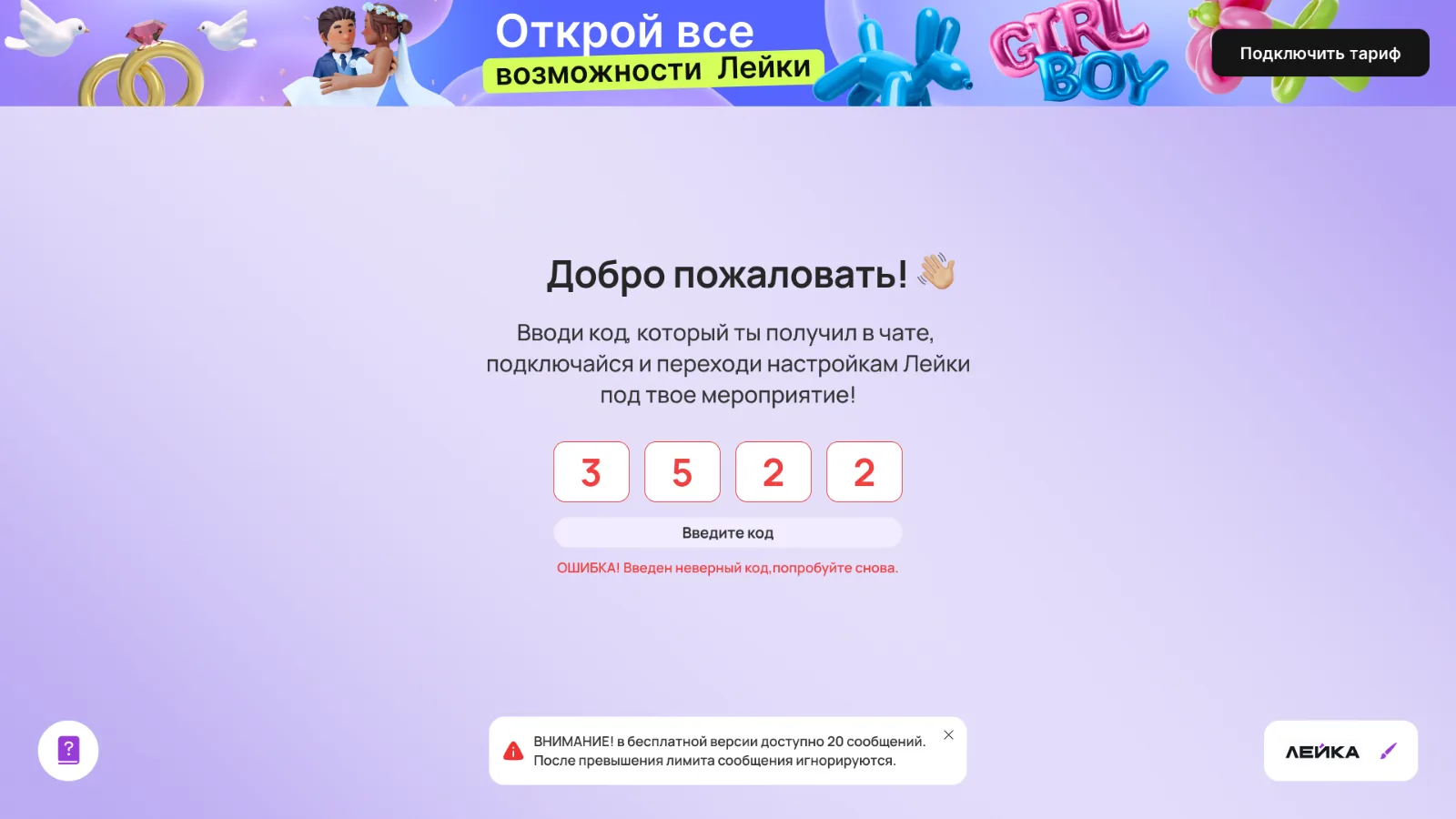
A wrong code -
The event settings
In the “Settings” tab the organizer sets the name of the event and the speed of message changes and chooses what to show on the screen.
- Speed. How often the messages on the screen change.
- What to show. The gallery, reactions, guest names, photos and videos, with separate switches.
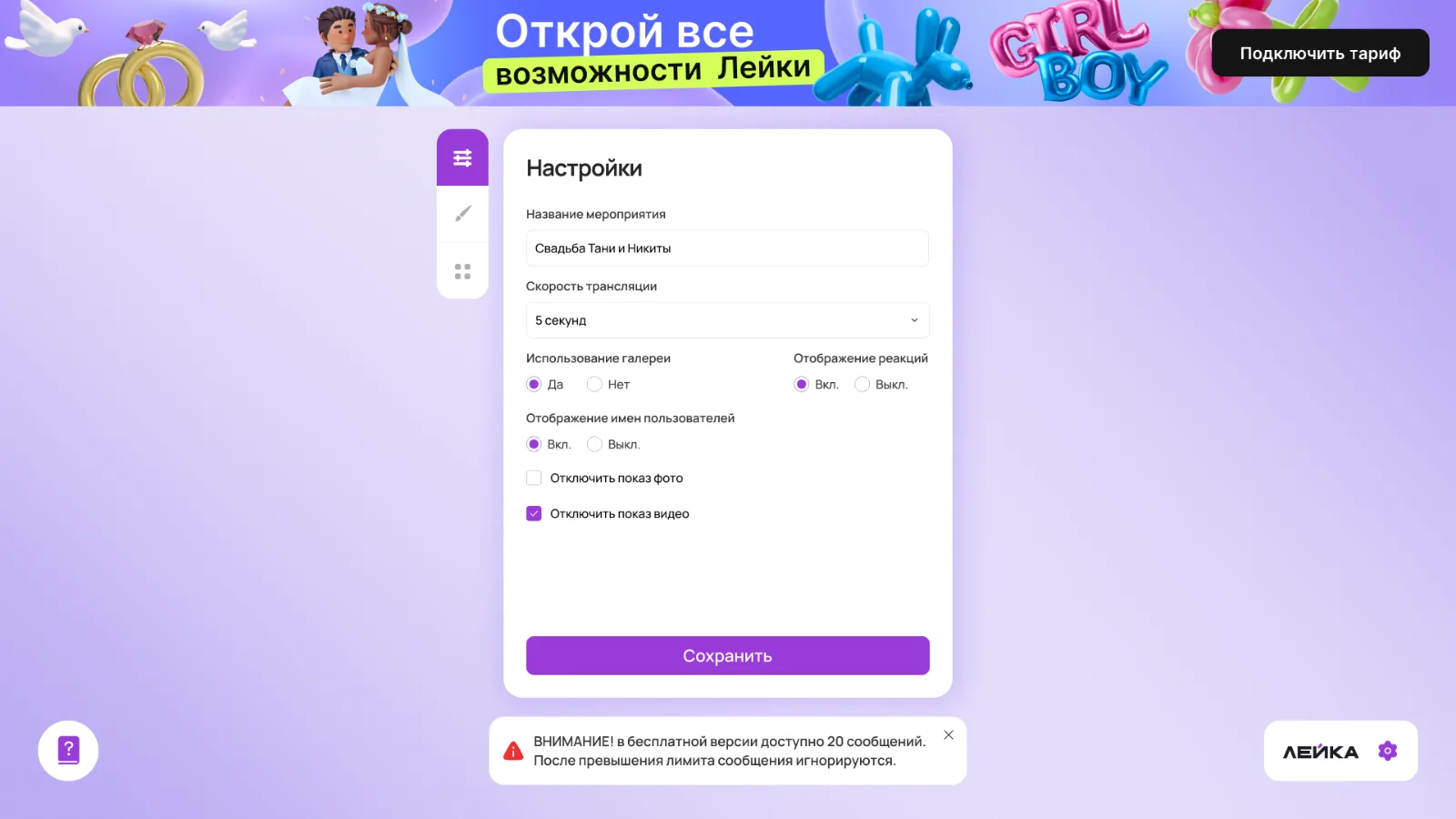
Settings -
Design: ready-made themes and colors
In the “Design” tab the organizer chooses a background from ready-made themes (wedding, cyberpunk, games and others), the text color and the color of the backing under the text.
- Themes to choose from. The background changes completely along with the color of the bubble.
- Your own color. The color of the text and the backing is matched to the background.
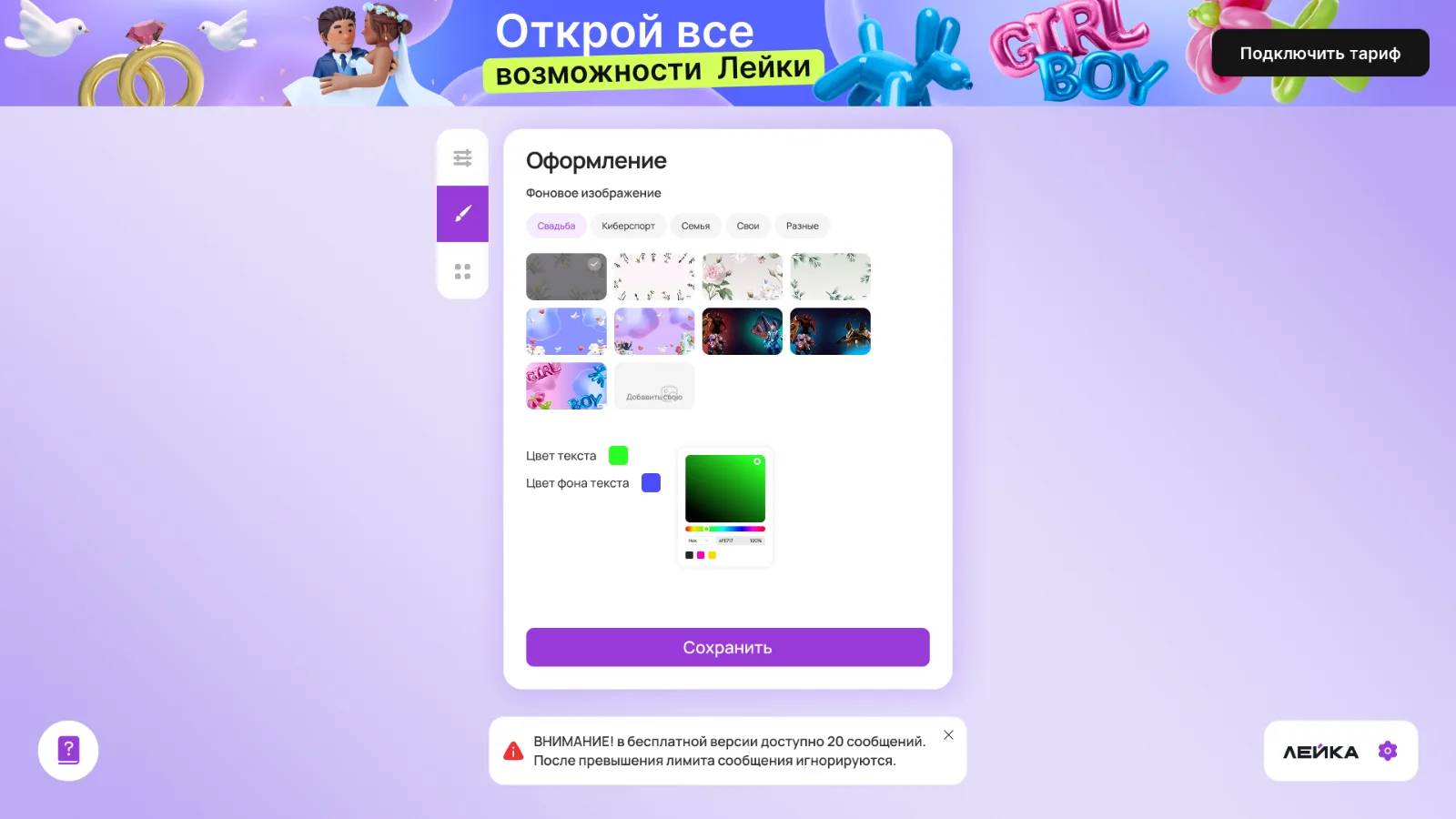
The “Design” tab 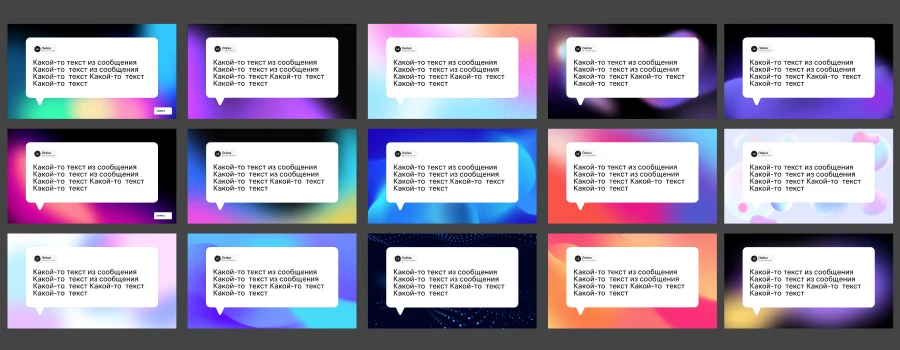
Ready-made themes -
Your own background
You can upload your own picture. The window shows the upload, then a preview and a “Save” button, so the organizer sees that the background has been accepted.
- Three states. An empty window, an upload with percentages and a ready preview.
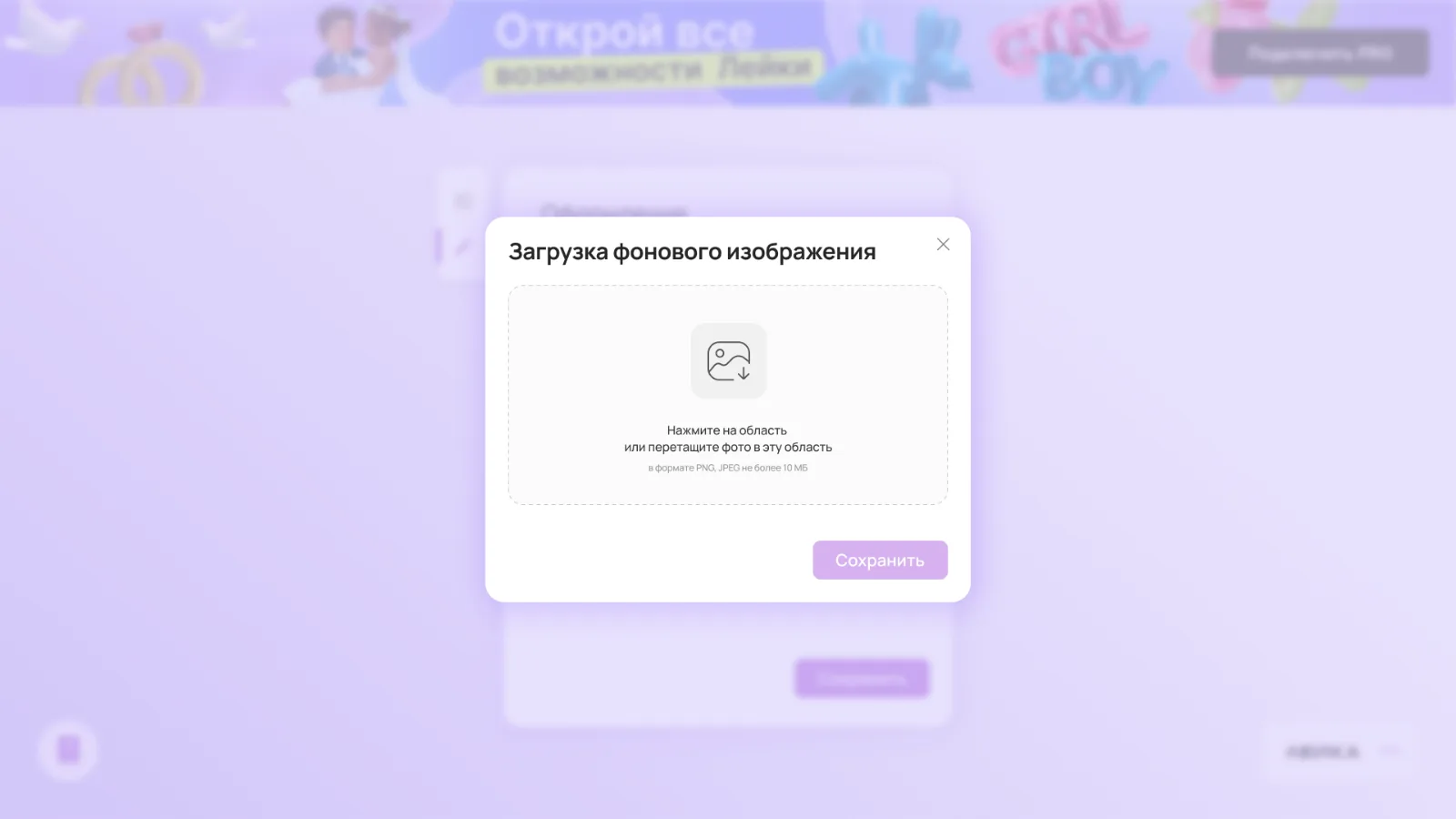
Background upload 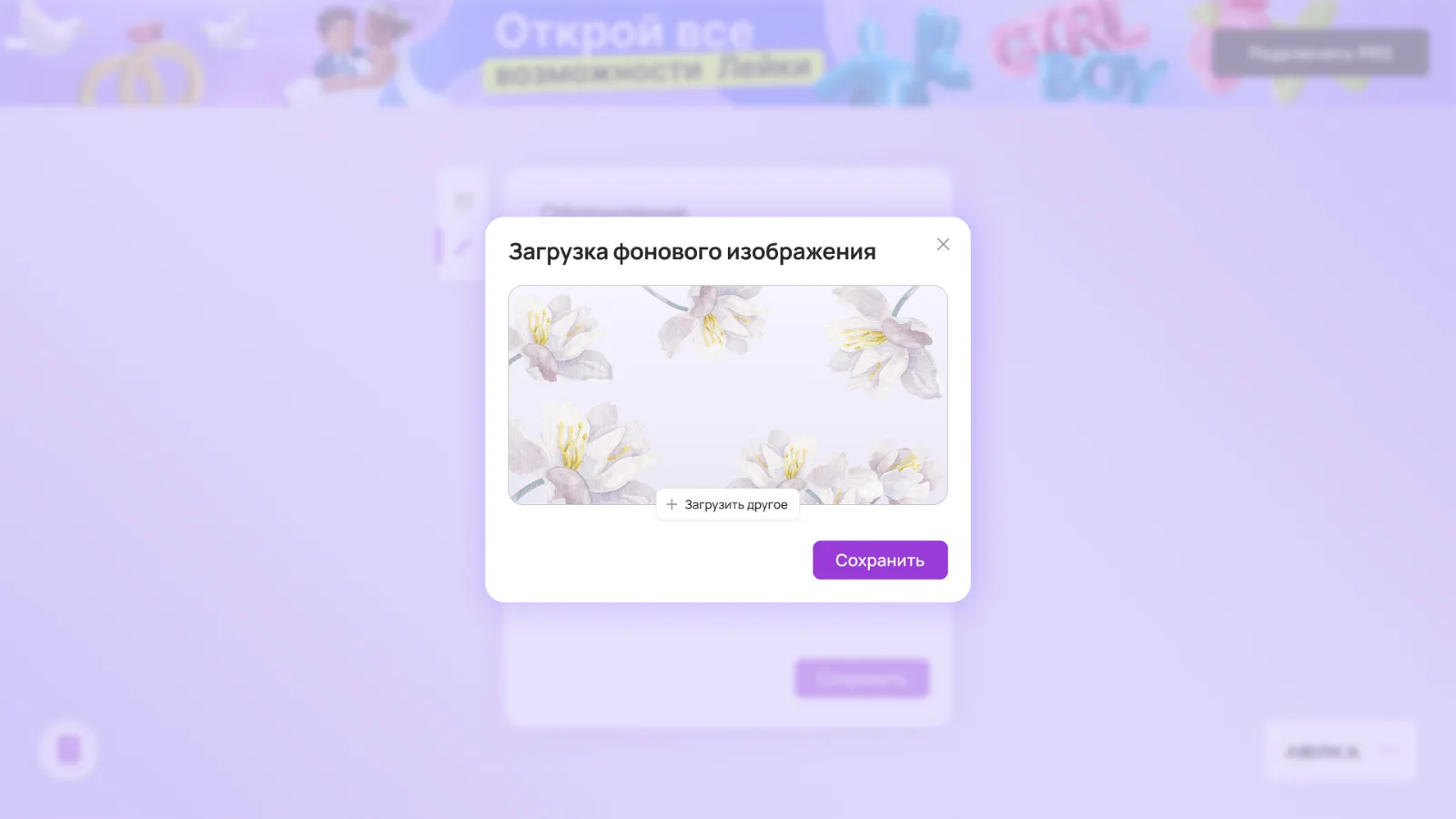
The background is uploaded -
Message templates
A template decides how a message lies on the screen: a picture on the left and text on the right, the other way round, a large picture in a bubble, text only or a grid of photos.
- One choice. The template changes at once for all new messages.
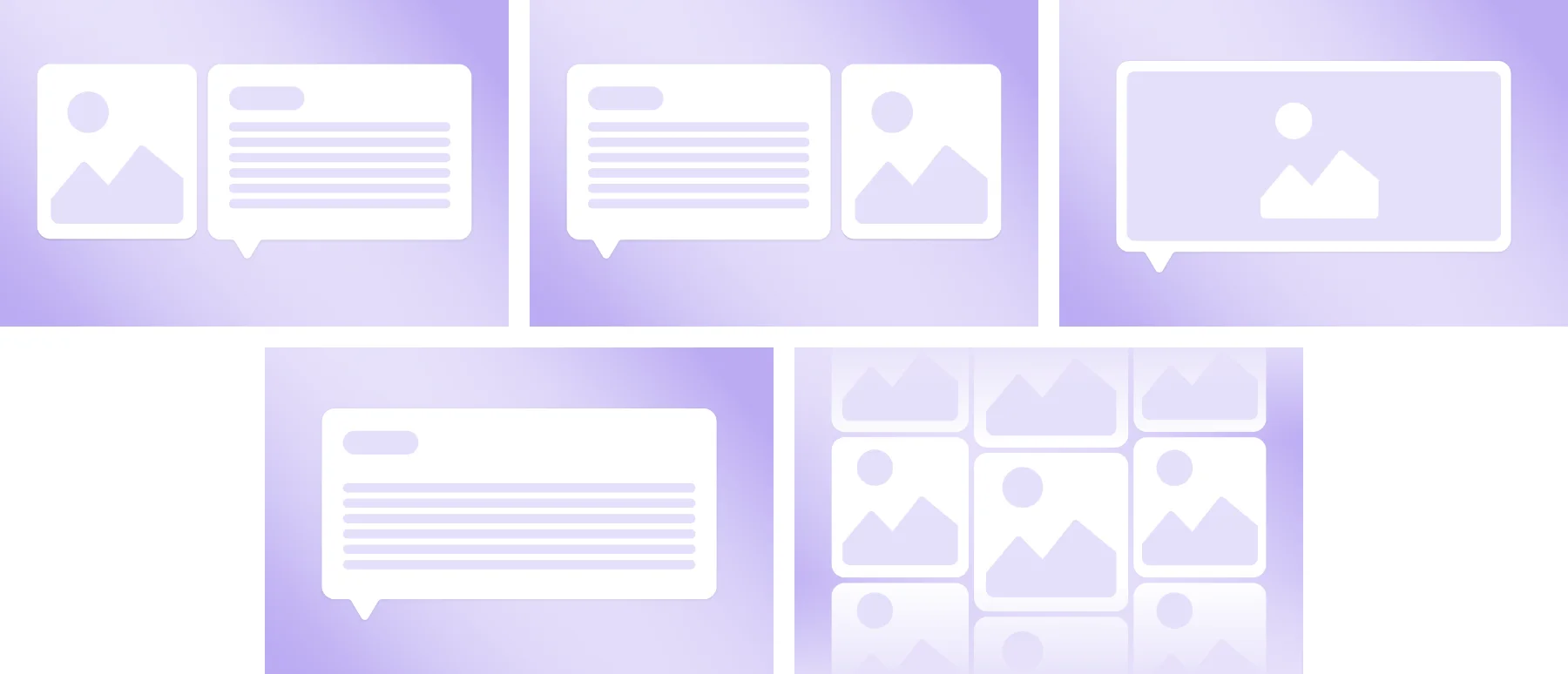
Five message templates -
The broadcast screen
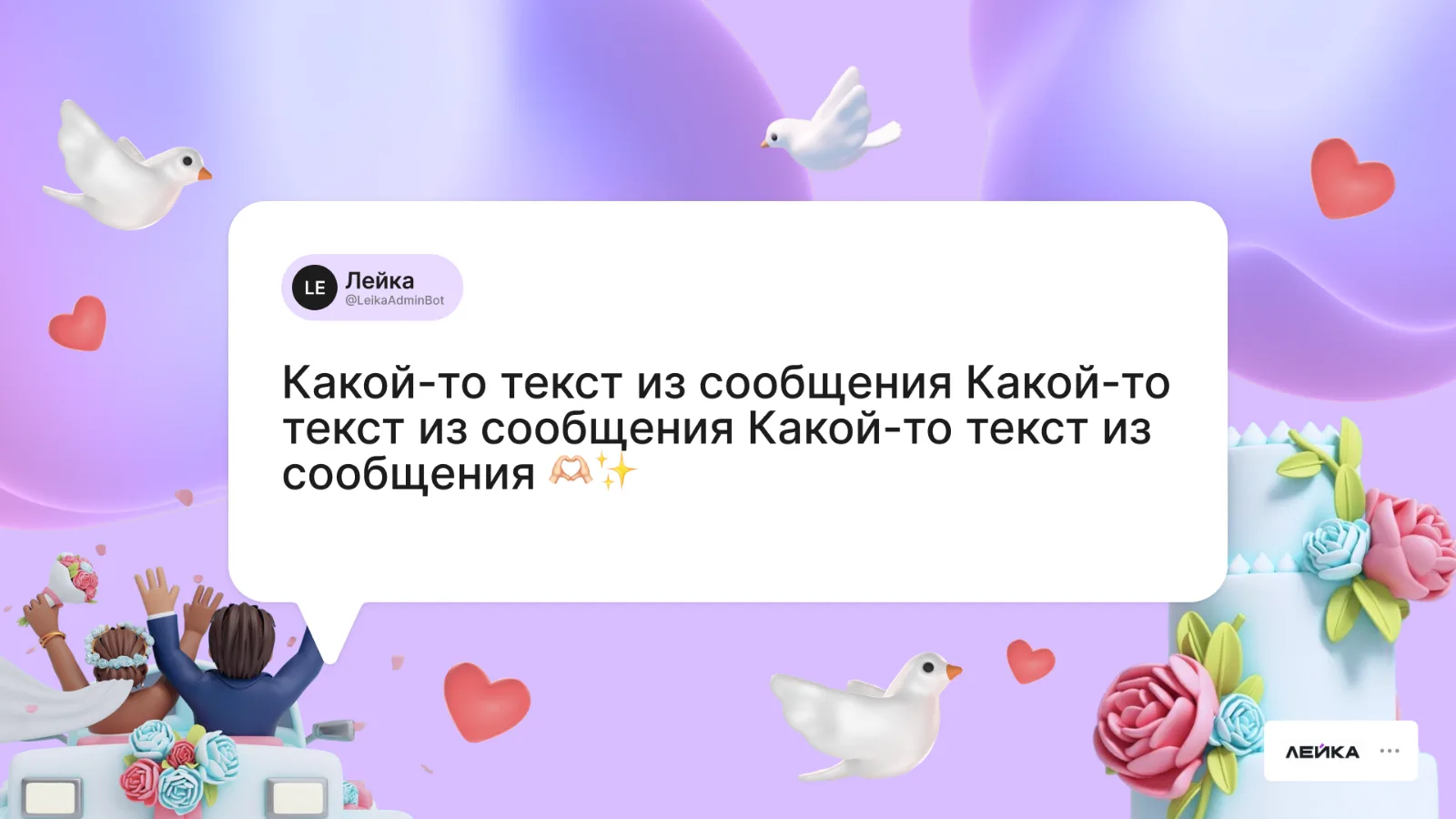
This is what the guests see: a message in a bubble with the sender’s name, text and emoji on a beautiful background. Each theme has its own style: flowers for a wedding, neon for cyberpunk, a dark interface for games.
- Readable from afar. Large text on a light backing, the sender’s name on top.
- A theme for games. A dark theme with game heroes, as at a tournament.
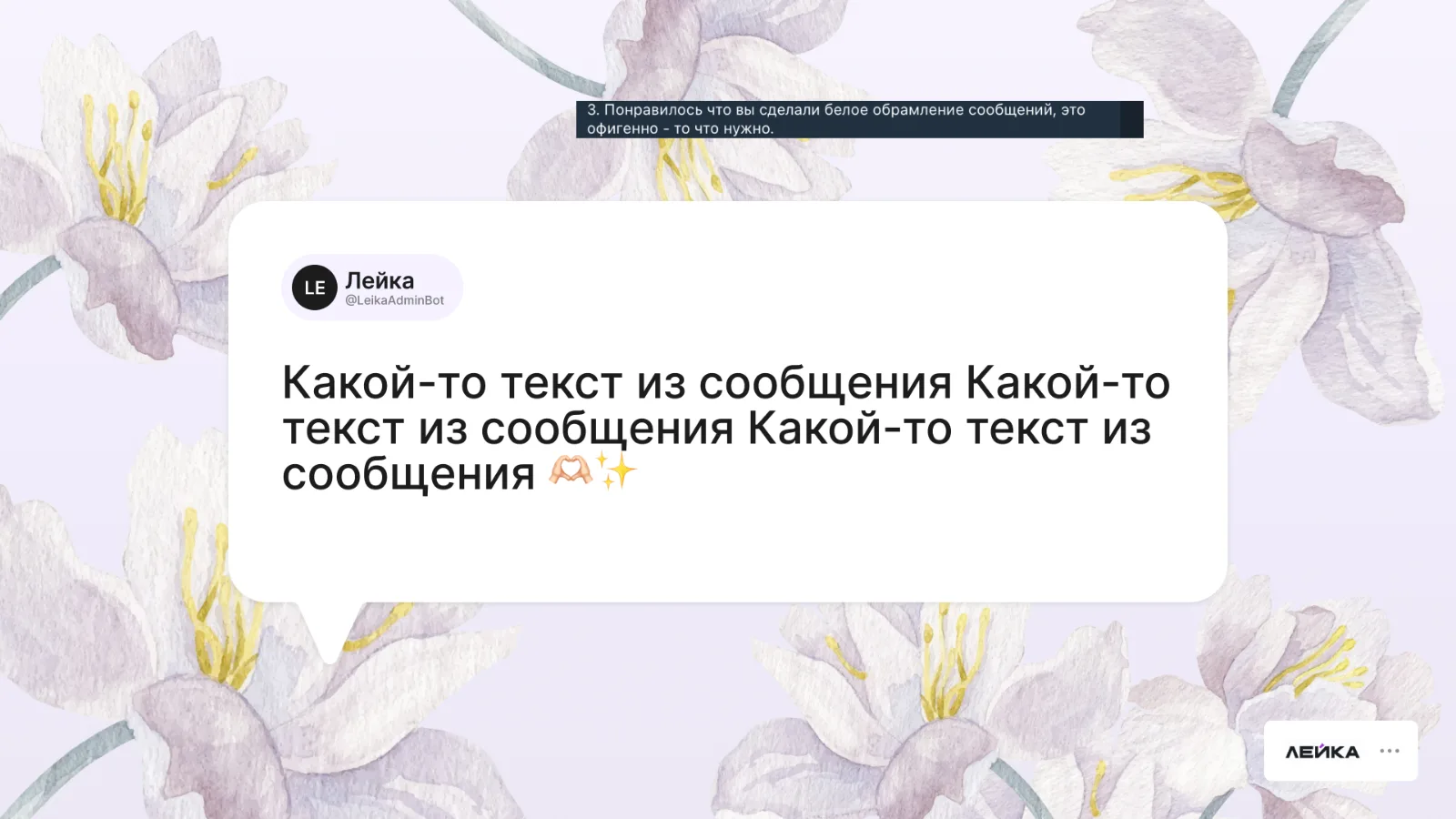
A theme with flowers 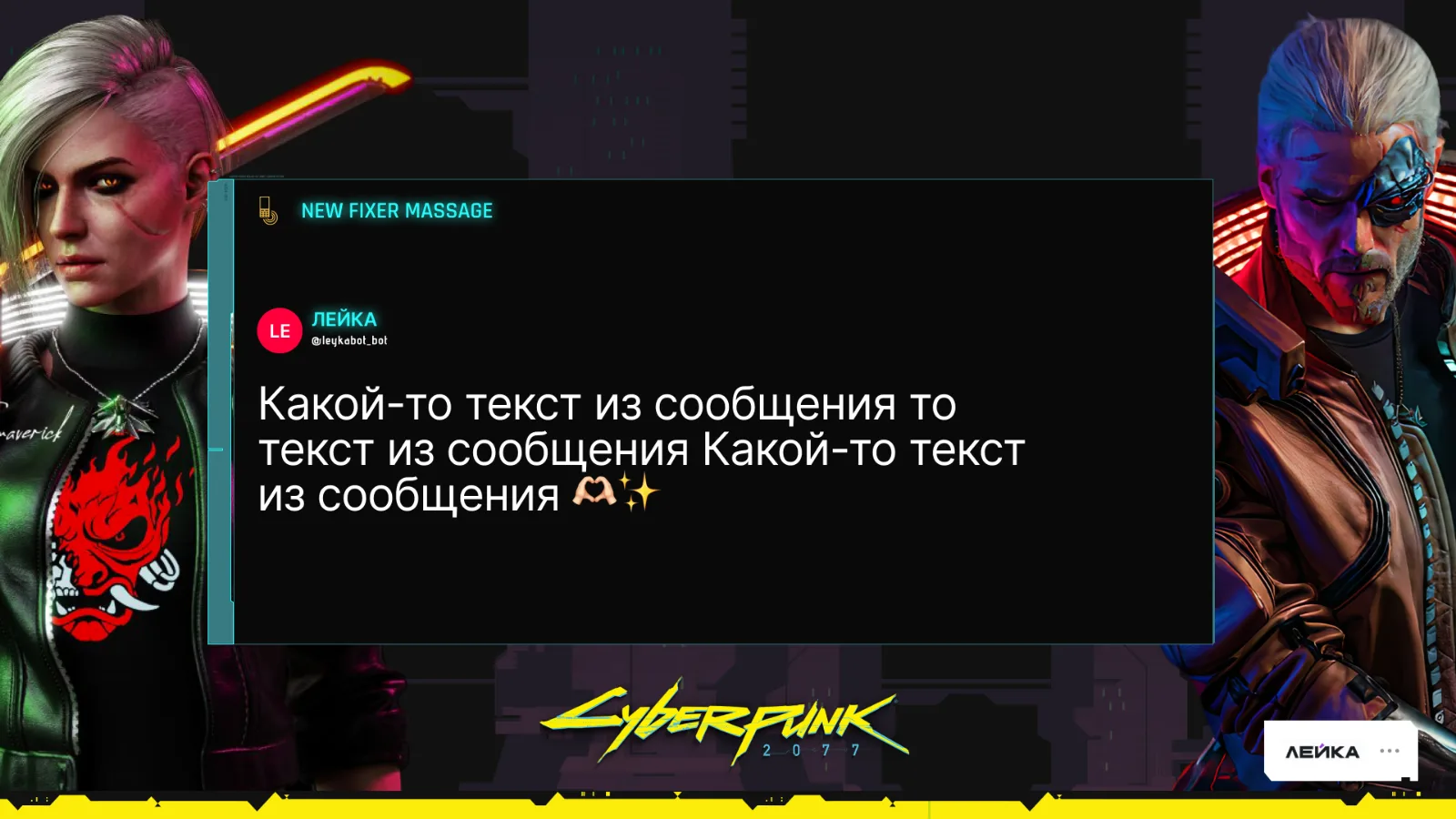
The “Cyberpunk” theme -
Photos and GIFs
Guests send not only text. A photo appears next to the bubble at a slight tilt, and a GIF comes to the foreground and covers the message while it plays.
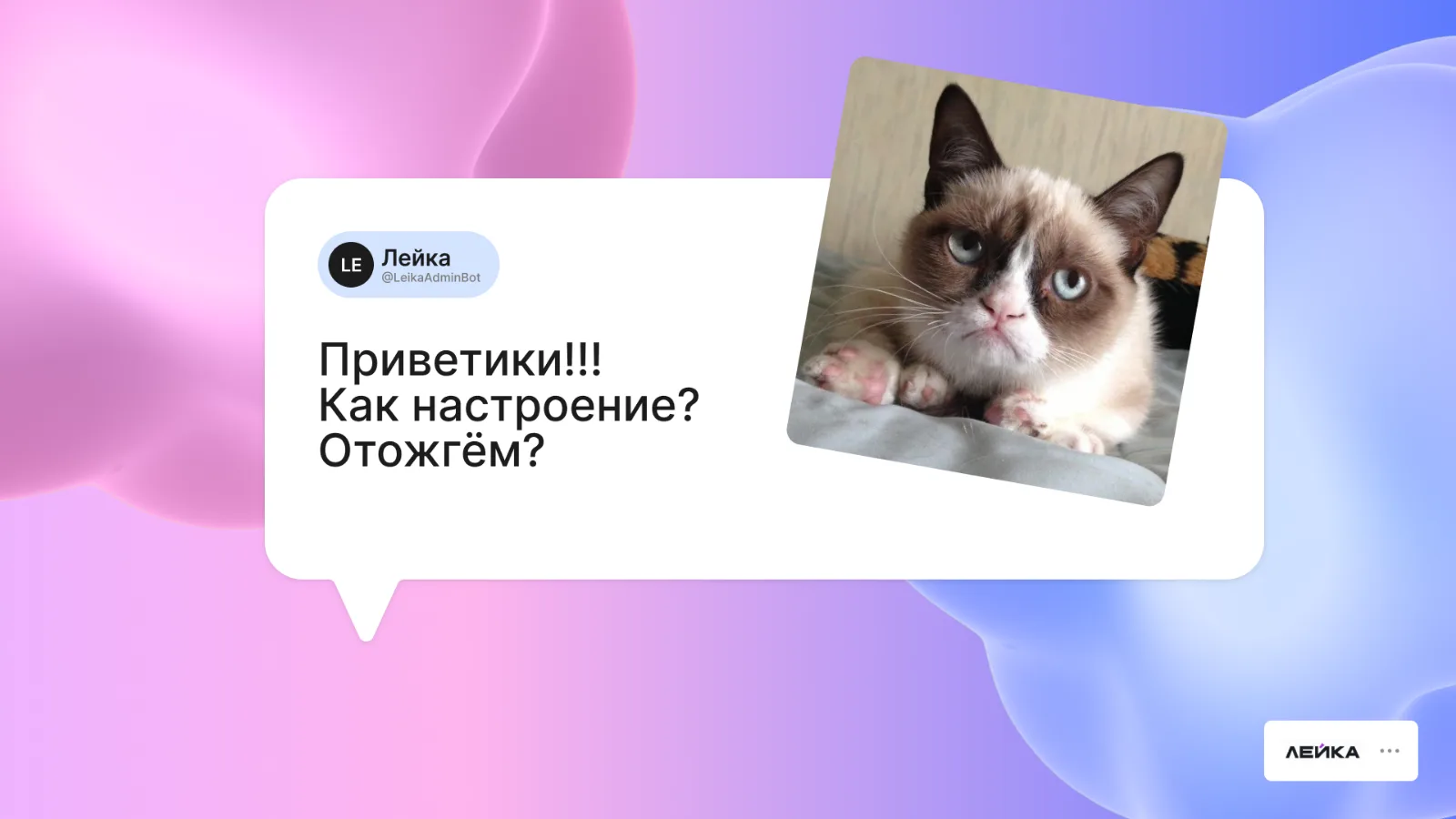
A photo in the chat 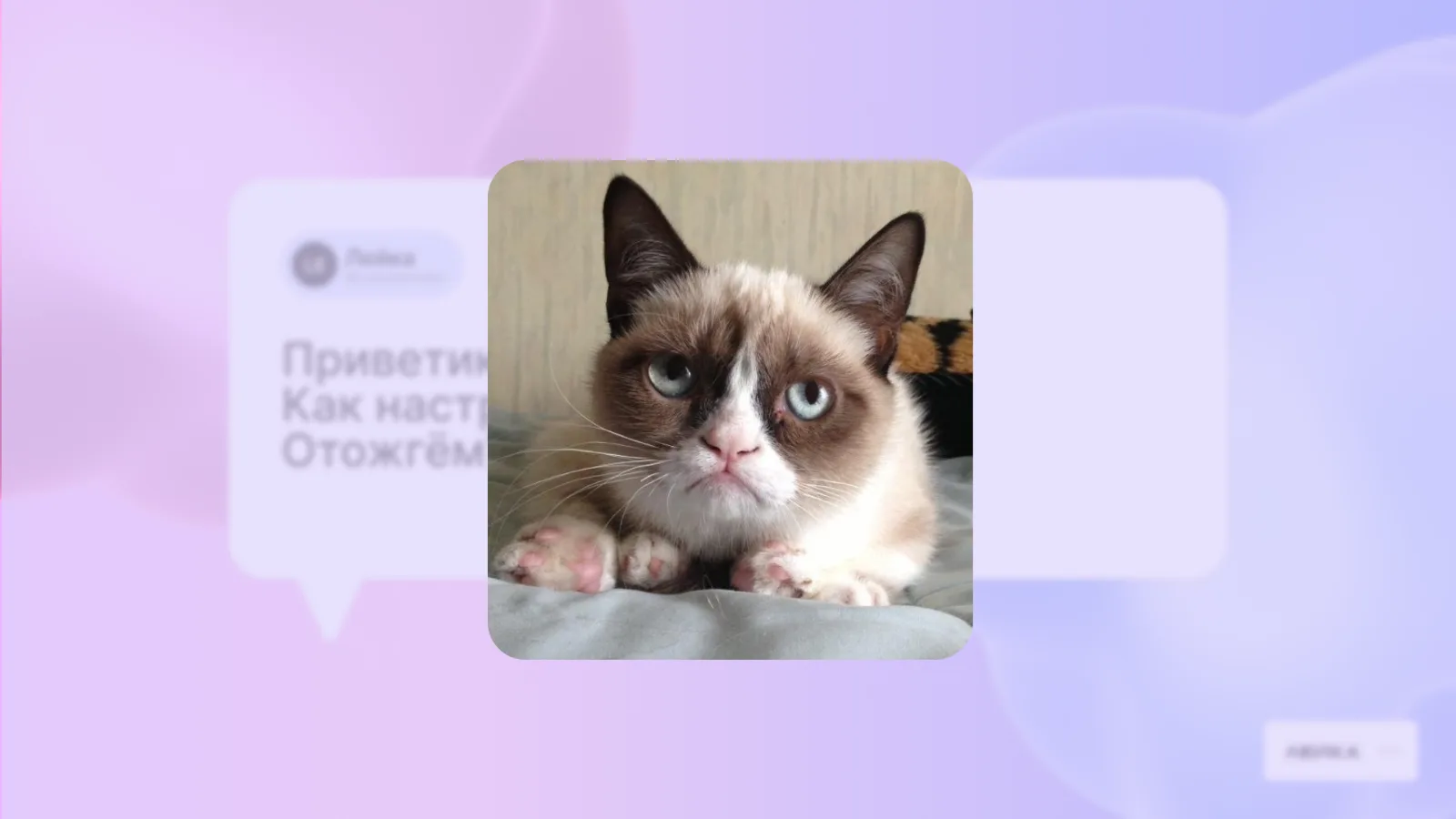
A GIF in the chat -
Video circles and reactions
A video circle is shown as a round window inside the bubble. The guests’ reactions fly out over the message, so the screen lives between messages too.
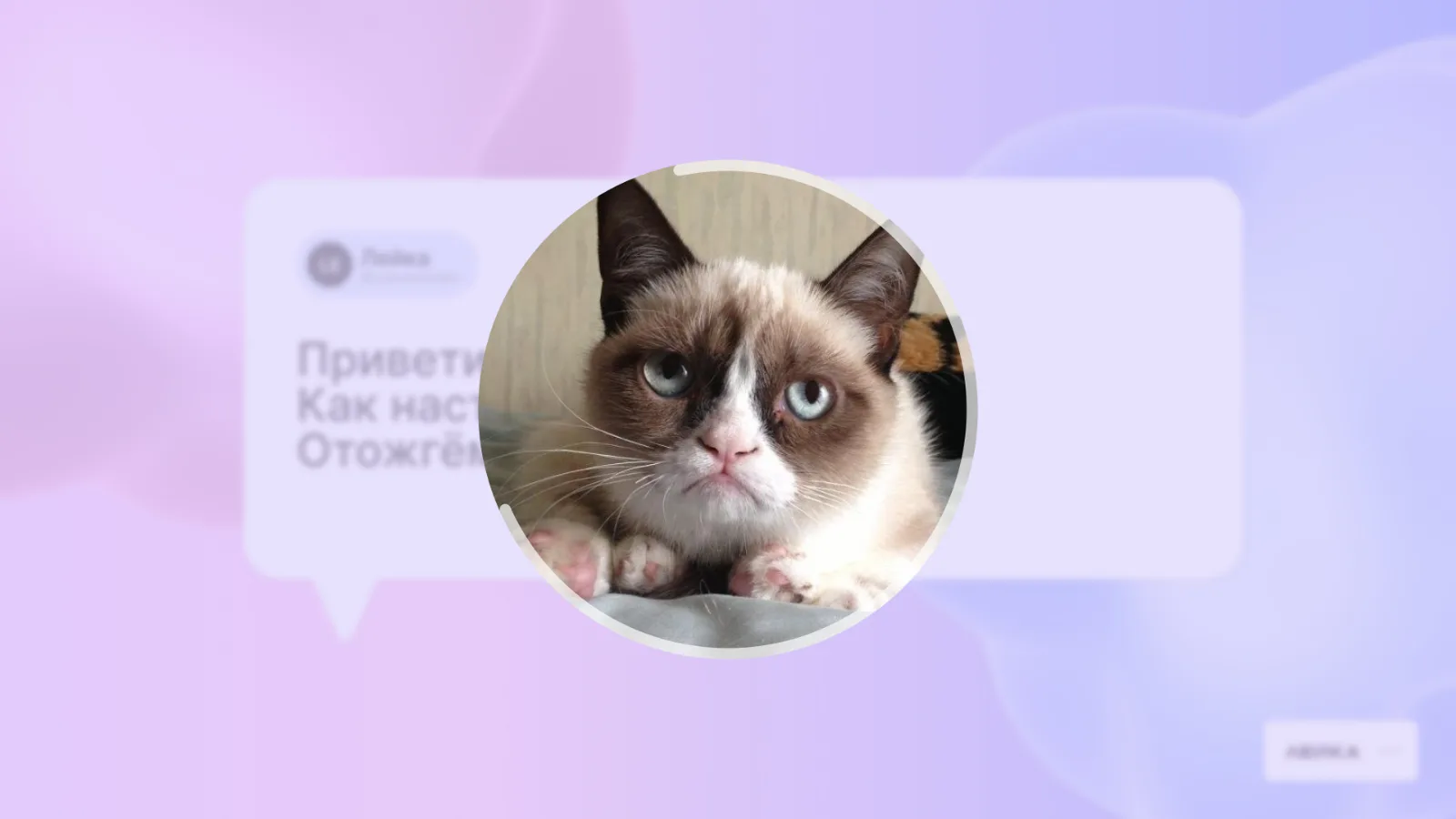
A video circle 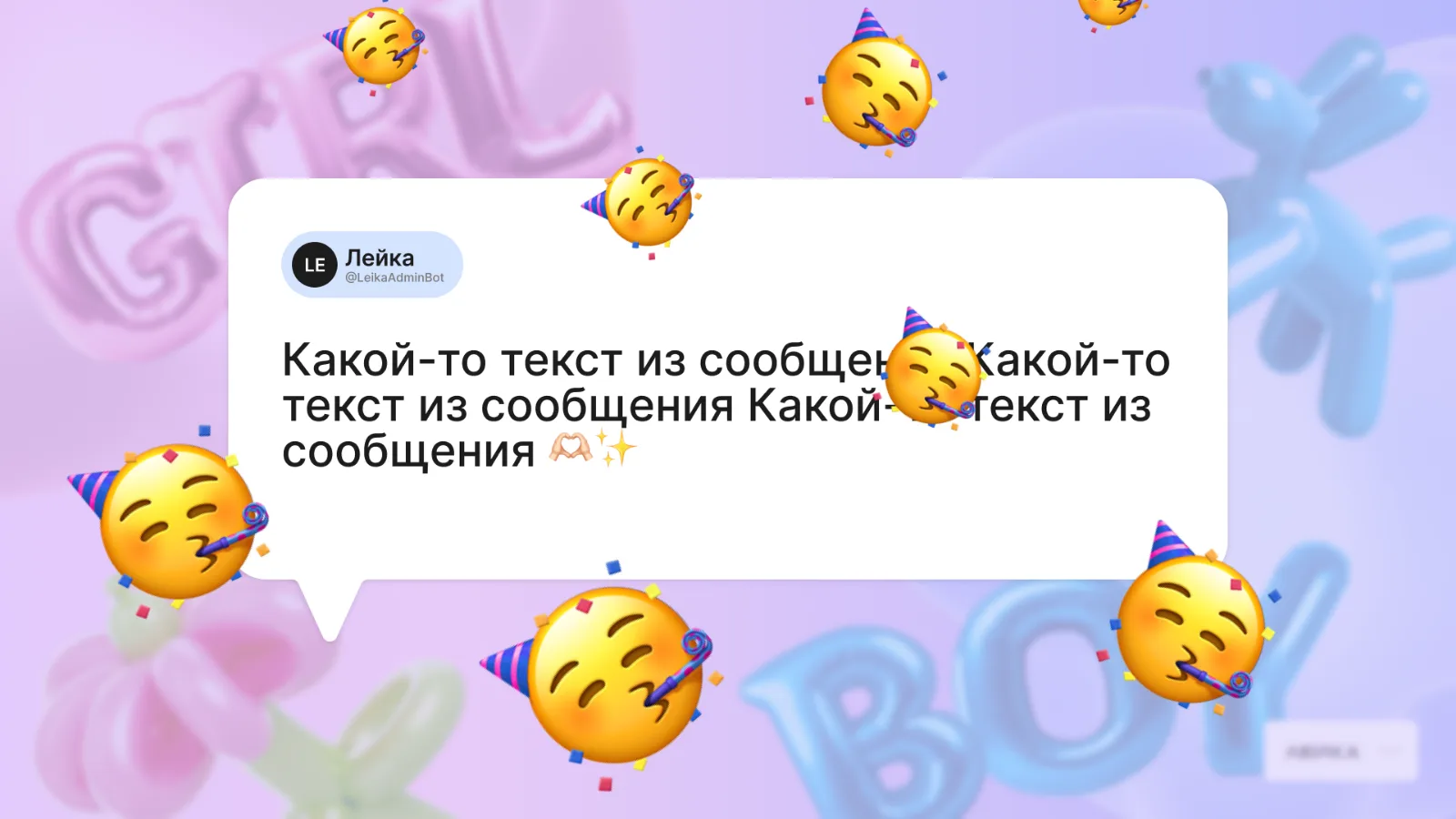
Reactions -
Help and plans
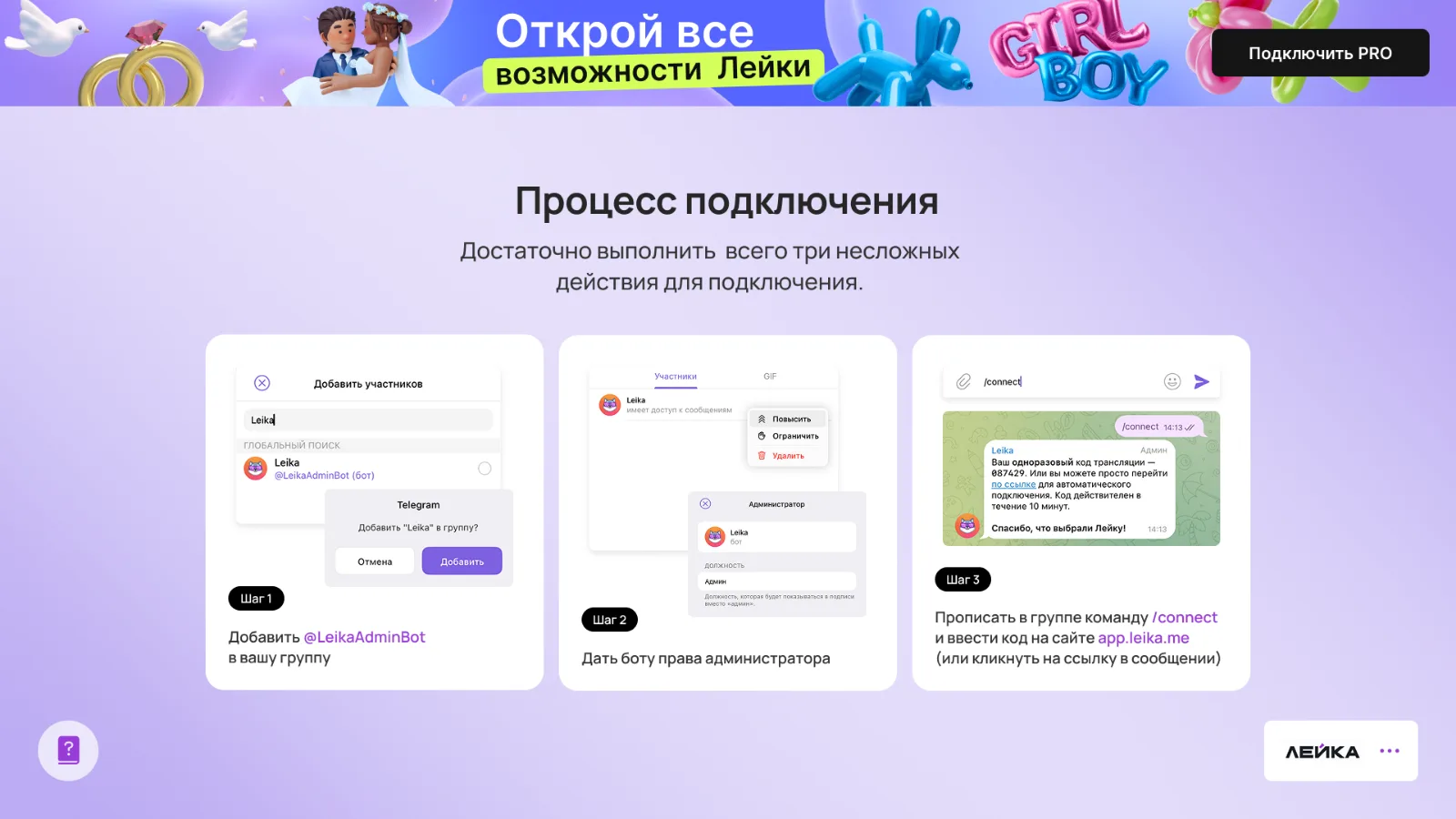
The platform has a help section: the connection is explained in three steps with pictures. Next to it are the plans: Standard, Advanced (Pro) and Corporate. The free version allows 20 messages, after that messages are not shown: a bar at the bottom of the screen says so.
- Hints in place. The help opens from the panel, there is no need to go to the website.
- Three plans. Different durations and capabilities: the “Moods” change right during the broadcast.
Help 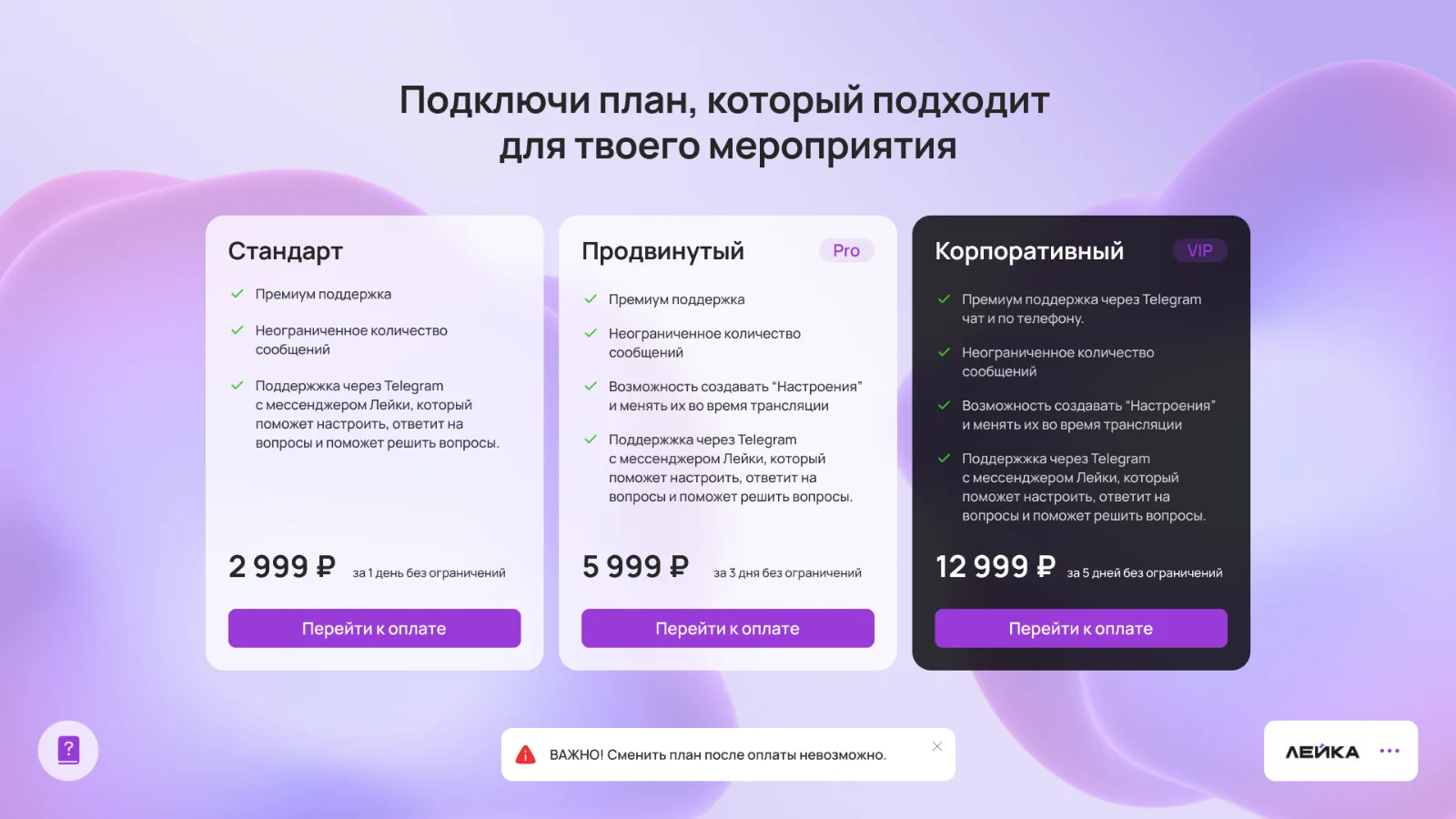
Plans
At the top of the platform screen there is a banner calling to connect Pro. It changes its look to match the theme: game, cyberpunk and wedding.


The result
- The landing page explains what Leika is and how to connect it and leads to choosing a plan
- The organizer sets up the screen on their own: the name, the speed, what to show, the theme and the template
- Messages, photos, GIFs, video circles and reactions of guests appear on the screen
- Themes for different events: a wedding, cyberpunk, games
- Three plans for different events: Standard, Advanced and Corporate
What the work included
- Landing page
- A web platform
- Working with a Telegram bot
- The settings panel
- The broadcast screen
- Design themes
- Plans
- The mobile version
Related services